ImageIcon
最后修改于 2024 年 1 月 27 日
在本文中,我们将使用 ImageIcon。我们将绘制图标、缩放图标、创建自定义图标,并将图标放入各种 Swing 组件中。
ImageIcon
Icon 是小型固定大小的图片,通常用于装饰组件。ImageIcon 是 Icon 接口的一个实现,它从图像绘制图标。图像可以从 URL、文件名或字节数组创建。
paintIcon(Component c, Graphics g, int x, int y)
Icon 的 paintIcon 方法在指定位置绘制图标。
ImageIcon 构造函数
ImageIcon 有几个构造函数,包括
ImageIcon(byte[] imageData)— 从字节数组创建一个ImageIcon。ImageIcon(Image image) — 从图像对象创建一个ImageIcon。ImageIcon(String filename)— 从指定文件创建一个ImageIcon。ImageIcon(URL location)— 从指定的 URL 创建一个ImageIcon。
ImageIcon 可以处理 PNG、JPEG 和 GIF 图像。如果我们要处理 BMP 或 ICO 图像,我们可以使用 image4j 库。
绘制图标
在第一个例子中,我们将在面板上绘制一个图标。
package com.zetcode;

import java.awt.Container;
import java.awt.Dimension;
import java.awt.EventQueue;
import java.awt.Graphics;
import javax.swing.GroupLayout;
import javax.swing.ImageIcon;
import javax.swing.JComponent;
import javax.swing.JFrame;
import javax.swing.JPanel;

class DrawingPanel extends JPanel {

    private ImageIcon icon;

    public DrawingPanel() {

        loadImage();
        initPanel();
    }

    private void loadImage() {

        icon = new ImageIcon("book.jpg");
    }

    private void initPanel() {

        int w = icon.getIconWidth();
        int h = icon.getIconHeight();
        setPreferredSize(new Dimension(w, h));
    }

    @Override
    public void paintComponent(Graphics g) {
        super.paintComponent(g);

        icon.paintIcon(this, g, 0, 0);
    }
}

public class PaintingIconEx extends JFrame {

    public PaintingIconEx() {

        initUI();
    }

    private void initUI() {

        DrawingPanel dpnl = new DrawingPanel();

        createLayout(dpnl);

        setTitle("Image");
        setLocationRelativeTo(null);
        setDefaultCloseOperation(JFrame.EXIT_ON_CLOSE);
    }

    private void createLayout(JComponent... arg) {

        Container pane = getContentPane();
        GroupLayout gl = new GroupLayout(pane);
        pane.setLayout(gl);

        gl.setHorizontalGroup(gl.createSequentialGroup()
                .addComponent(arg[0])
        );

        gl.setVerticalGroup(gl.createParallelGroup()
                .addComponent(arg[0])
        );

        pack();
    }

    public static void main(String[] args) {

        EventQueue.invokeLater(() -> {
            JFrame ex = new PaintingIconEx();
            ex.setVisible(true);
        });
    }
}
该示例从文件系统加载图像到 ImageIcon 中,并在 JPanel 组件上绘制它。
private void loadImage() {

    icon = new ImageIcon("book.jpg");
}
我们将 JPG 图像加载到 ImageIcon 中。该图像位于项目根目录中。
private void initPanel() {

    int w = icon.getIconWidth();
    int h = icon.getIconHeight();
    setPreferredSize(new Dimension(w, h));
}
在 initPanel 方法中,我们使用 getIconWidth 和 getIconHeight 方法确定图标的宽度和高度。我们将面板的首选大小设置为与图标大小匹配。
@Override
public void paintComponent(Graphics g) {
    super.paintComponent(g);

    icon.paintIcon(this, g, 0, 0);
}
在 paintComponent 方法中,我们使用 paintIcon 方法在面板上绘制图标。

缩放图像
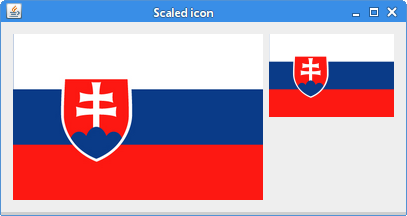
下面的示例展示了一种缩放图像的简单方法。
package com.zetcode;

import java.awt.Container;
import java.awt.EventQueue;
import java.awt.Image;
import javax.swing.GroupLayout;
import javax.swing.ImageIcon;
import javax.swing.JComponent;
import javax.swing.JFrame;
import static javax.swing.JFrame.EXIT_ON_CLOSE;
import javax.swing.JLabel;

public class ImageIconScaleEx extends JFrame {

    public ImageIconScaleEx() {

        initUI();
    }

    private void initUI() {

        ImageIcon originalIcon = new ImageIcon("slovakia.png");
        JLabel originalLabel = new JLabel(originalIcon);

        int width = originalIcon.getIconWidth() / 2;
        int height = originalIcon.getIconHeight() / 2;

        Image scaled = scaleImage(originalIcon.getImage(), width, height);

        ImageIcon scaledIcon = new ImageIcon(scaled);

        JLabel newLabel = new JLabel(scaledIcon);

        createLayout(originalLabel, newLabel);

        setTitle("Scaled icon");
        setLocationRelativeTo(null);
        setDefaultCloseOperation(EXIT_ON_CLOSE);
    }

    private Image scaleImage(Image image, int w, int h) {

        Image scaled = image.getScaledInstance(w, h, Image.SCALE_SMOOTH);

        return scaled;
    }

    private void createLayout(JComponent... arg) {

        Container pane = getContentPane();
        GroupLayout gl = new GroupLayout(pane);
        pane.setLayout(gl);

        gl.setAutoCreateContainerGaps(true);
        gl.setAutoCreateGaps(true);

        gl.setHorizontalGroup(gl.createSequentialGroup()
                .addComponent(arg[0])
                .addComponent(arg[1])
        );

        gl.setVerticalGroup(gl.createParallelGroup()
                .addComponent(arg[0])
                .addComponent(arg[1])
        );

        pack();
    }

    public static void main(String[] args) {

        EventQueue.invokeLater(() -> {
            ImageIconScaleEx ex = new ImageIconScaleEx();
            ex.setVisible(true);
        });
    }
}
窗口上显示两个图像:原始图像和它旁边的缩放图像。
ImageIcon originalIcon = new ImageIcon("slovakia.png");
我们将 PNG 图像读取到 ImageIcon 中。该图像位于项目根目录中。
int width = originalIcon.getIconWidth() / 2;
int height = originalIcon.getIconHeight() / 2;
我们使用 getIconWidth 和 getIconHeight 方法获取原始图像的宽度和高度。
Image scaled = scaleImage(originalIcon.getImage(), width, height);
我们将图标的 Image 及其宽度和高度传递给 scaleImage 方法,我们在该方法中执行缩放操作。
private Image scaleImage(Image image, int w, int h) {

    Image scaled = image.getScaledInstance(w, h, Image.SCALE_SMOOTH);

    return scaled;
}
getScaledInstance 创建 Image 的缩放版本。我们使用 Image.SCALE_SMOOTH 缩放操作,它赋予图像平滑度比缩放速度更高的优先级。
ImageIcon scaledIcon = new ImageIcon(scaled);

JLabel newLabel = new JLabel(scaledIcon);
我们从 Image 创建一个 ImageIcon,并将其传递给 JLabel 组件。
自定义图标
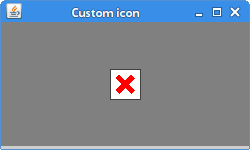
Swing 绘制 API 也可以用于创建自定义图标。图形上下文被传递给 paintIcon 方法。
package com.zetcode;

import java.awt.BasicStroke;
import java.awt.Color;
import java.awt.Component;
import java.awt.EventQueue;
import java.awt.Graphics;
import java.awt.Graphics2D;
import javax.swing.Icon;
import javax.swing.JFrame;
import javax.swing.JLabel;

class MissingIcon implements Icon {

    private final int WIDTH = 32;
    private final int HEIGHT = 32;

    private final BasicStroke stroke = new BasicStroke(5);

    @Override
    public void paintIcon(Component c, Graphics g, int x, int y) {

        doDrawing(g, x, y);
    }

    public void doDrawing(Graphics g, int x, int y) {

        Graphics2D g2d = (Graphics2D) g.create();

        g2d.setColor(Color.white);
        g2d.fillRect(x + 1, y + 1, WIDTH - 2, HEIGHT - 2);

        g2d.setColor(Color.darkGray);
        g2d.drawRect(x + 1, y + 1, WIDTH - 2, HEIGHT - 2);

        g2d.setColor(Color.red);

        g2d.setStroke(stroke);
        g2d.drawLine(x + 10, y + 10, x + WIDTH - 10, y + HEIGHT - 10);
        g2d.drawLine(x + 10, y + HEIGHT - 10, x + WIDTH - 10, y + 10);

        g2d.dispose();
    }

    @Override
    public int getIconWidth() {
        return WIDTH;
    }

    @Override
    public int getIconHeight() {
        return HEIGHT;
    }
}

class MyLabel extends JLabel {

    public MyLabel(Icon icon) {
        super(icon);
    }

    @Override
    public boolean isOpaque() {
        return true;
    }
}

public class CustomIconEx extends JFrame {

    public CustomIconEx() {

        initUI();
    }

    private void initUI() {

        JLabel lbl = new MyLabel(new MissingIcon());
        lbl.setBackground(Color.gray);
        add(lbl);

        setSize(250, 150);
        setTitle("Custom icon");
        setLocationRelativeTo(null);
        setDefaultCloseOperation(JFrame.EXIT_ON_CLOSE);
    }

    public static void main(String[] args) {

        EventQueue.invokeLater(() -> {
            CustomIconEx ex = new CustomIconEx();
            ex.setVisible(true);
        });
    }
}
该示例创建一个缺失的自定义图标,并在带有 JLabel 的窗口上显示它。
class MissingIcon implements Icon {
要创建一个自定义图标,我们实现 Icon 接口。
@Override
public int getIconWidth() {
    return WIDTH;
}

@Override
public int getIconHeight() {
    return HEIGHT;
}
我们重写 getIconWidth 和 getIconHeight 方法,它们确定图标的大小。
@Override
public void paintIcon(Component c, Graphics g, int x, int y) {

    doDrawing(g, x, y);
}
我们重写 paintIcon 方法,在该方法中绘制图标。Graphics 对象公开了许多用于绘制 2D 形状和获取有关应用程序图形环境信息的函数。
public void doDrawing(Graphics g, int x, int y) {

    Graphics2D g2d = (Graphics2D) g.create();

    g2d.setColor(Color.white);
    g2d.fillRect(x + 1, y + 1, WIDTH - 2, HEIGHT - 2);

    g2d.setColor(Color.darkGray);
    g2d.drawRect(x + 1, y + 1, WIDTH - 2, HEIGHT - 2);

    g2d.setColor(Color.red);

    g2d.setStroke(stroke);
    g2d.drawLine(x + 10, y + 10, x + WIDTH - 10, y + HEIGHT - 10);
    g2d.drawLine(x + 10, y + HEIGHT - 10, x + WIDTH - 10, y + 10);

    g2d.dispose();
}
在 doDrawing 方法内部,我们绘制图标。该过程与在 paintComponent 方法内部绘制相同。Graphics2D 类扩展了 Graphics 类,以提供对几何、坐标转换、颜色管理和文本布局的更精细控制。
class MyLabel extends JLabel {

    public MyLabel(Icon icon) {
        super(icon);
    }

    @Override
    public boolean isOpaque() {
        return true;
    }
}
我们有一个自定义的 MyLabel 组件。我们使其不透明,也就是说,该标签具有背景。
JLabel lbl = new MyLabel(new MissingIcon());
图标被设置为标签组件。
ImageIcon 按钮
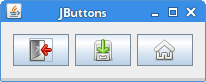
可以将 ImageIcons 放置在 JButton 组件上。
package com.zetcode;

import java.awt.Container;
import java.awt.EventQueue;
import javax.swing.GroupLayout;
import javax.swing.ImageIcon;
import javax.swing.JButton;
import javax.swing.JComponent;
import javax.swing.JFrame;
import static javax.swing.JFrame.EXIT_ON_CLOSE;

public class ImageIconButtonsEx extends JFrame {

    public ImageIconButtonsEx() {

        initUI();
    }

    private void initUI() {

        ImageIcon quitIcon = new ImageIcon("quit.png");
        ImageIcon saveIcon = new ImageIcon("save.png");
        ImageIcon homeIcon = new ImageIcon("home.png");

        JButton quitBtn = new JButton(quitIcon);
        JButton saveBtn = new JButton(saveIcon);
        JButton homeBtn = new JButton(homeIcon);

        createLayout(quitBtn, saveBtn, homeBtn);

        setTitle("JButtons");
        setLocationRelativeTo(null);
        setDefaultCloseOperation(EXIT_ON_CLOSE);
    }

    private void createLayout(JComponent... arg) {

        Container pane = getContentPane();
        GroupLayout gl = new GroupLayout(pane);
        pane.setLayout(gl);

        gl.setAutoCreateContainerGaps(true);
        gl.setAutoCreateGaps(true);

        gl.setHorizontalGroup(gl.createSequentialGroup()
                .addComponent(arg[0])
                .addComponent(arg[1])
                .addComponent(arg[2])
        );

        gl.setVerticalGroup(gl.createParallelGroup()
                .addComponent(arg[0])
                .addComponent(arg[1])
                .addComponent(arg[2])
        );

        gl.linkSize(arg[0], arg[1], arg[2]);

        pack();
    }

    public static void main(String[] args) {

        EventQueue.invokeLater(() -> {
            ImageIconButtonsEx ex = new ImageIconButtonsEx();
            ex.setVisible(true);
        });
    }
}
我们有三个按钮。每个按钮都显示一个 ImageIcon。
ImageIcon quitIcon = new ImageIcon("quit.png");
ImageIcon saveIcon = new ImageIcon("save.png");
ImageIcon homeIcon = new ImageIcon("home.png");
创建了三个 ImageIcons。我们将文件名传递给每个构造函数。PNG 文件位于项目根目录中。
JButton quitBtn = new JButton(quitIcon);
JButton saveBtn = new JButton(saveIcon);
JButton homeBtn = new JButton(homeIcon);
JButton 组件接受 ImageIcon 作为参数。
JFrame 图标
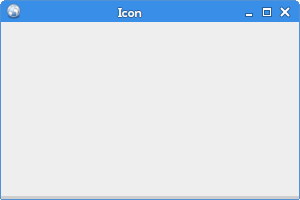
JFrame 组件可以在其标题栏中显示一个图标。它显示在标题栏的左侧。
package com.zetcode;

import java.awt.EventQueue;
import javax.swing.ImageIcon;
import javax.swing.JFrame;
import static javax.swing.JFrame.EXIT_ON_CLOSE;

public class FrameIconEx extends JFrame {

    public FrameIconEx() {

        initUI();
    }

    private void initUI() {

        ImageIcon webIcon = new ImageIcon("web.png");

        setIconImage(webIcon.getImage());

        setTitle("Icon");
        setSize(300, 200);
        setLocationRelativeTo(null);
        setDefaultCloseOperation(EXIT_ON_CLOSE);
    }

    public static void main(String[] args) {

        EventQueue.invokeLater(() -> {
            FrameIconEx ex = new FrameIconEx();
            ex.setVisible(true);
        });
    }
}
web.png 是一个小型的 22x22px 图像文件。
ImageIcon webIcon = new ImageIcon("web.png");
我们从 PNG 文件创建一个 ImageIcon,该文件位于项目根目录中。
setIconImage(webIcon.getImage());
setIconImage 将图像设置为要显示为此窗口的图标。getImage 返回该图标的 Image。
JLabel 中的 ImageIcon
在下面的示例中,我们将 ImageIcons 放入 JLabel 组件中。
package com.zetcode;

import java.awt.Container;
import java.awt.EventQueue;
import javax.swing.GroupLayout;
import javax.swing.ImageIcon;
import javax.swing.JComponent;
import javax.swing.JFrame;
import static javax.swing.JFrame.EXIT_ON_CLOSE;
import javax.swing.JLabel;

public class ImageIconLabelEx extends JFrame {

    public ImageIconLabelEx() {

        initUI();
    }

    private void initUI() {

        JLabel lbl1 = new JLabel(new ImageIcon("cpu.png"));
        JLabel lbl2 = new JLabel(new ImageIcon("drive.png"));
        JLabel lbl3 = new JLabel(new ImageIcon("laptop.png"));
        JLabel lbl4 = new JLabel(new ImageIcon("player.png"));
        JLabel lbl5 = new JLabel(new ImageIcon("pda.png"));

        createLayout(lbl1, lbl2, lbl3, lbl4, lbl5);

        setTitle("Icons");
        setLocationRelativeTo(null);
        setDefaultCloseOperation(EXIT_ON_CLOSE);
    }

    private void createLayout(JComponent... arg) {

        Container pane = getContentPane();
        GroupLayout gl = new GroupLayout(pane);
        pane.setLayout(gl);

        gl.setAutoCreateContainerGaps(true);
        gl.setAutoCreateGaps(true);

        gl.setHorizontalGroup(gl.createSequentialGroup()
                .addComponent(arg[0])
                .addComponent(arg[1])
                .addComponent(arg[2])
                .addComponent(arg[3])
                .addComponent(arg[4])
        );

        gl.setVerticalGroup(gl.createParallelGroup()
                .addComponent(arg[0])
                .addComponent(arg[1])
                .addComponent(arg[2])
                .addComponent(arg[3])
                .addComponent(arg[4])
        );

        pack();
    }

    public static void main(String[] args) {

        EventQueue.invokeLater(() -> {
            ImageIconLabelEx ex = new ImageIconLabelEx();
            ex.setVisible(true);
        });
    }
}
项目根目录中有五个 PNG 文件。它们显示在 JLabel 组件的窗口上。
JLabel lbl1 = new JLabel(new ImageIcon("cpu.png"));
JLabel lbl2 = new JLabel(new ImageIcon("drive.png"));
JLabel lbl3 = new JLabel(new ImageIcon("laptop.png"));
JLabel lbl4 = new JLabel(new ImageIcon("player.png"));
JLabel lbl5 = new JLabel(new ImageIcon("pda.png"));
JLabel 有一个以 ImageIcon 作为参数的构造函数。

JTabbedPane 中的 ImageIcon
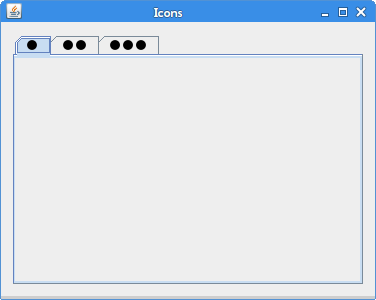
JTabbedPane 是一个 Swing 组件,它允许用户通过单击选项卡在组件组之间切换。这些选项卡可以包含 ImageIcons。
package com.zetcode;

import java.awt.Container;
import java.awt.Dimension;
import java.awt.EventQueue;
import javax.swing.GroupLayout;
import javax.swing.ImageIcon;
import javax.swing.JComponent;
import javax.swing.JFrame;
import static javax.swing.JFrame.EXIT_ON_CLOSE;
import javax.swing.JPanel;
import javax.swing.JTabbedPane;

public class ImageIconTabbedPaneEx extends JFrame {

    public ImageIconTabbedPaneEx() {

        initUI();
    }

    private void initUI() {

        ImageIcon icon1 = new ImageIcon("dot1.png");
        ImageIcon icon2 = new ImageIcon("dot2.png");
        ImageIcon icon3 = new ImageIcon("dot3.png");

        JTabbedPane tbp = new JTabbedPane();
        tbp.setPreferredSize(new Dimension(350, 250));

        tbp.addTab("", icon1, new JPanel());
        tbp.addTab("", icon2, new JPanel());
        tbp.addTab("", icon3, new JPanel());

        createLayout(tbp);

        setTitle("Icons");
        setLocationRelativeTo(null);
        setDefaultCloseOperation(EXIT_ON_CLOSE);
    }

    private void createLayout(JComponent... arg) {

        Container pane = getContentPane();
        GroupLayout gl = new GroupLayout(pane);
        pane.setLayout(gl);

        gl.setAutoCreateContainerGaps(true);
        gl.setAutoCreateGaps(true);

        gl.setHorizontalGroup(gl.createSequentialGroup()
                .addComponent(arg[0])
        );

        gl.setVerticalGroup(gl.createParallelGroup()
                .addComponent(arg[0])
        );

        pack();
    }

    public static void main(String[] args) {

        EventQueue.invokeLater(() -> {
            ImageIconTabbedPaneEx ex = new ImageIconTabbedPaneEx();
            ex.setVisible(true);
        });
    }
}
该示例在 JTabbedPane 组件的选项卡中显示 ImageIcons。
ImageIcon icon1 = new ImageIcon("dot1.png");
ImageIcon 已创建。
JTabbedPane tbp = new JTabbedPane();
JTabbedPane 已创建。
tbp.addTab("", icon1, new JPanel());
addTab 方法的第二个参数是 ImageIcon。
来源
本教程专门介绍 Java ImageIcon。
作者
列出所有Java教程。