PyQt4中的布局管理
最后修改于 2023 年 10 月 18 日
GUI编程的一个重要方面是布局管理。布局管理是我们如何在窗口上放置控件的方式。布局管理可以通过两种基本方式进行。我们可以使用绝对定位或布局类。
绝对定位
程序员以像素为单位指定每个小部件的位置和大小。当您使用绝对定位时,我们必须理解以下限制
- 如果我们调整窗口大小,小部件的大小和位置不会改变
- 应用程序在各种平台上可能看起来不同
- 更改应用程序中的字体可能会破坏布局
- 如果我们决定更改我们的布局,我们必须完全重新做我们的布局,这既乏味又耗时
下面的例子将以绝对坐标定位控件。
#!/usr/bin/python

"""
ZetCode PyQt4 tutorial

This example shows three labels on a window
using absolute positioning.

author: Jan Bodnar
website: zetcode.com
"""

import sys
from PyQt4 import QtGui

class Example(QtGui.QWidget):

    def __init__(self):
        super(Example, self).__init__()

        self.initUI()

    def initUI(self):

        lbl1 = QtGui.QLabel('ZetCode', self)
        lbl1.move(15, 10)

        lbl2 = QtGui.QLabel('tutorials', self)
        lbl2.move(35, 40)

        lbl3 = QtGui.QLabel('for programmers', self)
        lbl3.move(55, 70)

        self.setGeometry(300, 300, 250, 150)
        self.setWindowTitle('Absolute')
        self.show()

def main():

    app = QtGui.QApplication(sys.argv)
    ex = Example()
    sys.exit(app.exec_())


if __name__ == '__main__':
    main()
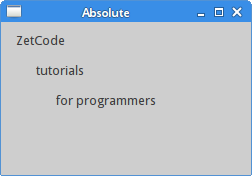
我们使用move方法来定位我们的控件。在我们的例子中,这些是标签。我们通过提供x和y坐标来定位它们。坐标系统的起点位于左上角。x值从左到右增长。y值从上到下增长。
lbl1 = QtGui.QLabel('Zetcode', self)
lbl1.move(15, 10)
标签小部件位于 x=15 和 y=10。
盒式布局
使用布局类的布局管理更加灵活和实用。这是在窗口上放置控件的首选方式。QtGui.QHBoxLayout和QtGui.QVBoxLayout是基本的布局类,它们分别水平和垂直地排列控件。
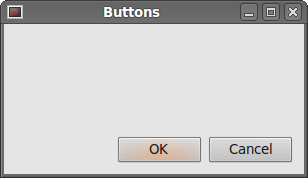
想象一下,我们想在右下角放置两个按钮。为了创建这样的布局,我们使用一个水平和一个垂直盒子。为了创建必要的空间,我们添加一个拉伸因子。
#!/usr/bin/python

"""
ZetCode PyQt4 tutorial

In this example, we position two push
buttons in the bottom-right corner
of the window.

author: Jan Bodnar
website: zetcode.com
"""

import sys
from PyQt4 import QtGui

class Example(QtGui.QWidget):

    def __init__(self):
        super(Example, self).__init__()

        self.initUI()

    def initUI(self):

        okButton = QtGui.QPushButton("OK")
        cancelButton = QtGui.QPushButton("Cancel")

        hbox = QtGui.QHBoxLayout()
        hbox.addStretch(1)
        hbox.addWidget(okButton)
        hbox.addWidget(cancelButton)

        vbox = QtGui.QVBoxLayout()
        vbox.addStretch(1)
        vbox.addLayout(hbox)

        self.setLayout(vbox)

        self.setGeometry(300, 300, 300, 150)
        self.setWindowTitle('Buttons')
        self.show()

def main():

    app = QtGui.QApplication(sys.argv)
    ex = Example()
    sys.exit(app.exec_())


if __name__ == '__main__':
    main()
该示例将两个按钮放在应用程序窗口的右下角。当我们调整应用程序窗口大小时,它们会保持在那里。我们同时使用了QtGui.HBoxLayout和QtGui.QVBoxLayout。
okButton = QtGui.QPushButton("OK")
cancelButton = QtGui.QPushButton("Cancel")
这里我们创建了两个按钮。
hbox = QtGui.QHBoxLayout()
hbox.addStretch(1)
hbox.addWidget(okButton)
hbox.addWidget(cancelButton)
我们创建一个水平框布局,并添加一个伸展因子和两个按钮。 伸展添加了两个按钮之前的可伸展空间。 这会将它们推到窗口的右侧。
vbox = QtGui.QVBoxLayout()
vbox.addStretch(1)
vbox.addLayout(hbox)
为了创建必要的布局,我们将一个水平布局放入一个垂直布局中。垂直框中的拉伸因子会将带有按钮的水平框推到窗口的底部。
self.setLayout(vbox)
最后,我们设置窗口的主布局。
QtGui.QGridLayout
最通用的布局类是网格布局。此布局将空间划分为行和列。要创建网格布局,我们使用QtGui.QGridLayout类。
#!/usr/bin/python

import sys
from PyQt4 import QtGui

"""
ZetCode PyQt4 tutorial

In this example, we create a skeleton
of a calculator using a QtGui.QGridLayout.

author: Jan Bodnar
website: zetcode.com
"""

class Example(QtGui.QWidget):

    def __init__(self):
        super(Example, self).__init__()

        self.initUI()

    def initUI(self):

        grid = QtGui.QGridLayout()
        self.setLayout(grid)

        names = ['Cls', 'Bck', '', 'Close',
                 '7', '8', '9', '/',
                '4', '5', '6', '*',
                 '1', '2', '3', '-',
                '0', '.', '=', '+']

        positions = [(i,j) for i in range(5) for j in range(4)]

        for position, name in zip(positions, names):

            if name == '':
                continue
            button = QtGui.QPushButton(name)
            grid.addWidget(button, *position)

        self.move(300, 150)
        self.setWindowTitle('Calculator')
        self.show()

def main():
    app = QtGui.QApplication(sys.argv)
    ex = Example()
    sys.exit(app.exec_())

if __name__ == '__main__':
    main()
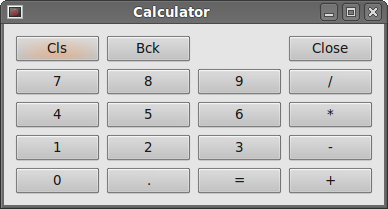
在我们的示例中,我们创建一个按钮网格。
grid = QtGui.QGridLayout()
self.setLayout(grid)
创建QtGui.QGridLayout的实例,并将其设置为应用程序窗口的布局。
names = ['Cls', 'Bck', '', 'Close',
            '7', '8', '9', '/',
        '4', '5', '6', '*',
            '1', '2', '3', '-',
        '0', '.', '=', '+']
这些是稍后用于按钮的标签。
positions = [(i,j) for i in range(5) for j in range(4)]
我们创建一个网格中的位置列表。
for position, name in zip(positions, names):

    if name == '':
        continue
    button = QtGui.QPushButton(name)
    grid.addWidget(button, *position)
创建按钮并使用 addWidget 方法将它们添加到布局中。
复习示例
小部件可以跨越网格中的多列或多行。 在下一个示例中,我们将对此进行说明。
#!/usr/bin/python

"""
ZetCode PyQt4 tutorial

In this example, we create a bit
more complicated window layout using
the QtGui.QGridLayout manager.

author: Jan Bodnar
website: zetcode.com
"""

import sys
from PyQt4 import QtGui


class Example(QtGui.QWidget):

    def __init__(self):
        super(Example, self).__init__()

        self.initUI()

    def initUI(self):

        title = QtGui.QLabel('Title')
        author = QtGui.QLabel('Author')
        review = QtGui.QLabel('Review')

        titleEdit = QtGui.QLineEdit()
        authorEdit = QtGui.QLineEdit()
        reviewEdit = QtGui.QTextEdit()

        grid = QtGui.QGridLayout()
        grid.setSpacing(10)

        grid.addWidget(title, 1, 0)
        grid.addWidget(titleEdit, 1, 1)

        grid.addWidget(author, 2, 0)
        grid.addWidget(authorEdit, 2, 1)

        grid.addWidget(review, 3, 0)
        grid.addWidget(reviewEdit, 3, 1, 5, 1)

        self.setLayout(grid)

        self.setGeometry(300, 300, 350, 300)
        self.setWindowTitle('Review')
        self.show()

def main():

    app = QtGui.QApplication(sys.argv)
    ex = Example()
    sys.exit(app.exec_())


if __name__ == '__main__':
    main()
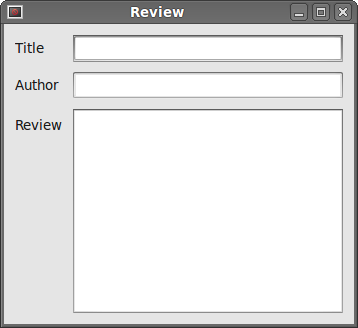
我们创建一个窗口,其中包含三个标签、两个行编辑器和一个文本编辑器控件。布局是通过QtGui.QGridLayout完成的。
grid = QtGui.QGridLayout()
grid.setSpacing(10)
我们创建一个网格布局并设置小部件之间的间距。
grid.addWidget(reviewEdit, 3, 1, 5, 1)
如果我们将小部件添加到网格,我们可以提供小部件的行跨度和列跨度。 在我们的例子中,我们使 reviewEdit 小部件跨越 5 行。
PyQt4教程的这一部分是关于布局管理的。