GTK# 中的小部件
最后修改于 2023 年 10 月 18 日
在本 GTK# 编程教程中,我们将介绍一些 GTK# 小部件。
小部件是 GUI 应用程序的基本构建块。多年来,一些小部件已成为所有操作系统平台上所有工具包的标准。例如,按钮、复选框或滚动条。GTK# 工具包的理念是将小部件的数量保持在最低限度。更多专业的小部件作为自定义 GTK# 小部件创建。
标签
Label 小部件显示文本。
using Gtk;

class SharpApp : Window {

   string text = @"Meet you downstairs in the bar and heard
your rolled up sleeves and your skull t-shirt
You say why did you do it with him today?
and sniff me out like I was Tanqueray

cause you're my fella, my guy
hand me your stella and fly
by the time I'm out the door
you tear men down like Roger Moore

I cheated myself
like I knew I would
I told ya, I was trouble
you know that I'm no good";


    public SharpApp() : base("You know I'm No Good")
    {
        BorderWidth = 8;
        SetPosition(WindowPosition.Center);

        DeleteEvent += delegate { Application.Quit(); };

        Label lyrics = new Label(text);
        Add(lyrics);

        ShowAll();
    }

    public static void Main()
    {
        Application.Init();
        new SharpApp();
        Application.Run();
    }
}
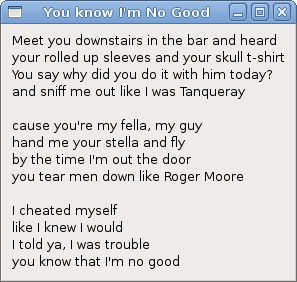
代码示例在窗口上显示一些歌词。
    string text = @"Meet you downstairs in the bar and heard
your rolled up sleeves and your skull t-shirt
...
在 C# 编程语言中,多行字符串以 @ 字符开头。
BorderWidth = 8;
Label 被一些空白空间包围。
Label lyrics = new Label(text);
Add(lyrics);
Label 小部件被创建并添加到窗口。
复选框
CheckButton 是一个具有两种状态的小部件:开和关。开状态通过复选标记可视化。它用于表示某个布尔属性。
using Gtk;
using System;

class SharpApp : Window {


    public SharpApp() : base("CheckButton")
    {
        SetDefaultSize(250, 200);
        SetPosition(WindowPosition.Center);

        DeleteEvent += delegate { Application.Quit(); };

        CheckButton cb = new CheckButton("Show title");
        cb.Active = true;
        cb.Toggled += OnToggle;

        Fixed fix = new Fixed();
        fix.Put(cb, 50, 50);

        Add(fix);
        ShowAll();
    }


    void OnToggle(object sender, EventArgs args)
    {
        CheckButton cb = (CheckButton) sender;

        if (cb.Active) {
            Title = "CheckButton";
        } else {
            Title = " ";
        }
    }

    public static void Main()
    {
        Application.Init();
        new SharpApp();
        Application.Run();
    }
}
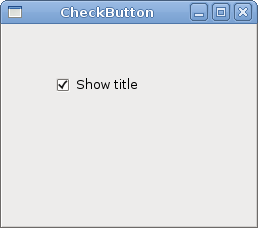
我们根据 CheckButton 的状态在窗口的标题栏中显示标题。
CheckButton cb = new CheckButton("Show title");
CheckButton 小部件被创建。
cb.Active = true;
默认情况下,标题是可见的,因此我们默认勾选复选框。
CheckButton cb = (CheckButton) sender;
在这里,我们将发送者对象转换为 CheckButton 类。
if (cb.Active) {
    Title = "CheckButton";
} else {
    Title = " ";
}
根据 CheckButton 的 Active 属性,我们显示或隐藏窗口的标题。
组合框
ComboBox 是一个允许用户从选项列表中进行选择的小部件。
using Gtk;
using System;

class SharpApp : Window {


    Label label;

    public SharpApp() : base("ComboBox")
    {
       string[] distros = new string[] {"Ubuntu",
            "Mandriva",
            "Red Hat",
            "Fedora",
            "Gentoo" };


        SetDefaultSize(250, 200);
        SetPosition(WindowPosition.Center);
        BorderWidth = 7;
        DeleteEvent += delegate { Application.Quit(); };

        Fixed fix = new Fixed();

        ComboBox cb = new ComboBox(distros);
        cb.Changed += OnChanged;
        label = new Label("-");

        fix.Put(cb, 50, 30);
        fix.Put(label, 50, 140);
        Add(fix);

        ShowAll();
    }

    void OnChanged(object sender, EventArgs args)
    {
        ComboBox cb = (ComboBox) sender;
        label.Text = cb.ActiveText;
    }

    public static void Main()
    {
        Application.Init();
        new SharpApp();
        Application.Run();
    }
}
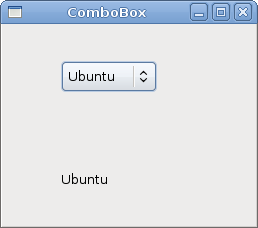
该示例显示一个组合框和一个标签。组合框有六个选项的列表。这些是 Linux 发行版的名称。标签小部件显示从组合框中选择的选项。
string[] distros = new string[] {"Ubuntu",
    "Mandriva",
    "Red Hat",
    "Fedora",
    "Gentoo" };
这是一个字符串数组,它将显示在 ComboBox 小部件中。
ComboBox cb = new ComboBox(distros);
ComboBox 小部件被创建。构造函数将字符串数组作为参数。
void OnChanged(object sender, EventArgs args)
{
    ComboBox cb = (ComboBox) sender;
    label.Text = cb.ActiveText;
}
在 OnChanged 方法中,我们从组合框中获取选定的文本,并将其设置为标签。
图像
下一个示例介绍了 Image 小部件。此小部件显示图片。
using Gtk;
using System;

class SharpApp : Window {

    Gdk.Pixbuf castle;

    public SharpApp() : base("Red Rock")
    {
        BorderWidth = 1;
        SetPosition(WindowPosition.Center);
        DeleteEvent += delegate { Application.Quit(); };

        try {
            castle = new Gdk.Pixbuf("redrock.png");
        } catch {
            Console.WriteLine("Image not found");
            Environment.Exit(1);
        }

        Image image = new Image(castle);
        Add(image);

        ShowAll();
    }

    public static void Main()
    {
        Application.Init();
        new SharpApp();
        Application.Run();
    }
}
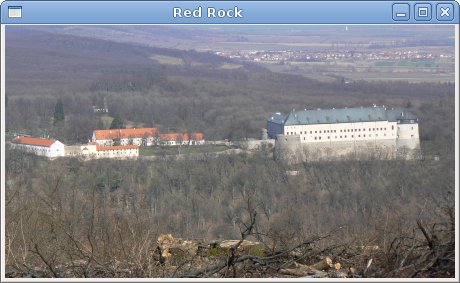
我们在窗口中显示红岩城堡。
try {
    castle = new Gdk.Pixbuf("redrock.png");
} catch {
    Console.WriteLine("Image not found");
    Environment.Exit(1);
}
我们创建了 Gdk.Pixbuf 小部件。我们将构造函数放在 try 和 catch 关键字之间以处理可能的错误。
Image image = new Image(castle);
Add(image);
Image 小部件被创建并添加到窗口。
在本章中,我们展示了 GTK# 编程库的基本小部件的第一组。