HTML5 画布形状
最后修改于 2023 年 7 月 17 日
在本部分 HTML5 画布教程中,我们创建了一些基本和更高级的几何形状。
矩形
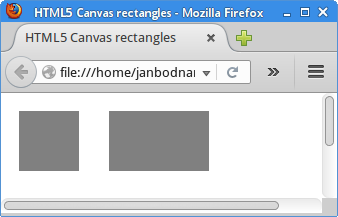
第一个程序绘制了两个矩形。
<!DOCTYPE html>
<html>
<head>
<title>HTML5 canvas rectangles</title>
<script>
    function draw() {

        var canvas = document.getElementById('myCanvas');
        var ctx = canvas.getContext('2d');

        ctx.fillStyle = 'gray';
        ctx.fillRect(10, 10, 60, 60);
        ctx.fillRect(100, 10, 100, 60);
    }
</script>
</head>

<body onload="draw();">
    <canvas id="myCanvas" width="350" height="250">
    </canvas>
</body>
</html>
示例使用 drawRect 方法绘制矩形。
ctx.fillStyle = 'gray';
矩形的内部以灰色填充。
ctx.fillRect(10, 10, 60, 60);
ctx.fillRect(100, 10, 100, 60);
fillRect 方法用于绘制正方形和矩形。前两个参数是形状的 x 和 y 坐标。最后两个参数是形状的宽度和高度。
基本形状
在下面的程序中,我们绘制了一些基本形状。
<!DOCTYPE html>
<html>
<head>
<title>HTML5 canvas shapes</title>
<script>
    function draw() {

        var canvas = document.getElementById('myCanvas');
        var ctx = canvas.getContext('2d');

        ctx.fillStyle = 'gray';
        ctx.fillRect(10, 10, 60, 60);
        ctx.fillRect(100, 10, 90, 60);

        ctx.beginPath();
        ctx.arc(250, 40, 32, 0, 2*Math.PI);
        ctx.fill();

        ctx.beginPath();
        ctx.moveTo(10, 160);
        ctx.lineTo(90, 160);
        ctx.lineTo(50, 110);
        ctx.closePath();
        ctx.fill();

        ctx.save();
        ctx.scale(2, 1);
        ctx.beginPath();
        ctx.arc(72, 130, 25, 0, 2*Math.PI);
        ctx.fill();
        ctx.restore();

        ctx.beginPath();
        ctx.arc(250, 120, 40, 0, Math.PI);
        ctx.fill();
    }
</script>
</head>

<body onload="draw();">
<canvas id="myCanvas" width="350" height="350">
</canvas>
</body>

</html>
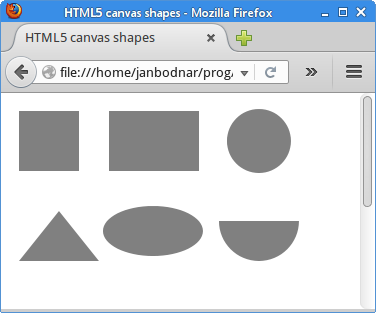
画布上绘制了六种不同的形状。
ctx.fillStyle = 'gray';
形状将以灰色填充。
ctx.fillRect(10, 10, 60, 60);
ctx.fillRect(100, 10, 90, 60);
矩形使用 fillRect 方法绘制。矩形是唯一一个不使用 beginPath 方法初始化的形状。
ctx.beginPath();
ctx.arc(250, 40, 32, 0, 2*Math.PI);
ctx.fill();
圆使用 arc 方法绘制。该方法将一个弧添加到创建的路径中。前两个参数定义了弧的中心点的 x 和 y 坐标。接下来的两个参数指定了弧的起始角和结束角。角度以弧度定义。最后一个参数是可选的;它指定了绘制弧的方向。默认方向是顺时针。
ctx.beginPath();
ctx.moveTo(10, 160);
ctx.lineTo(90, 160);
ctx.lineTo(50, 110);
ctx.closePath();
ctx.fill();
使用 moveTo 和 lineTo 方法,我们绘制了一个三角形。closePath 方法会将画笔移回到当前子路径的起点。在我们的例子中,它完成了三角形的形状。
ctx.save();
ctx.scale(2, 1);
ctx.beginPath();
ctx.arc(72, 130, 25, 0, 2*Math.PI);
ctx.fill();
ctx.restore();
椭圆形是通过缩放圆形绘制的。这些操作放在 save 和 restore 方法之间,这样缩放操作就不会影响后续的绘图。
ctx.beginPath();
ctx.arc(250, 120, 40, 0, Math.PI);
ctx.fill();
最后一个形状,一个半圆,是使用 arc 方法绘制的。
饼图
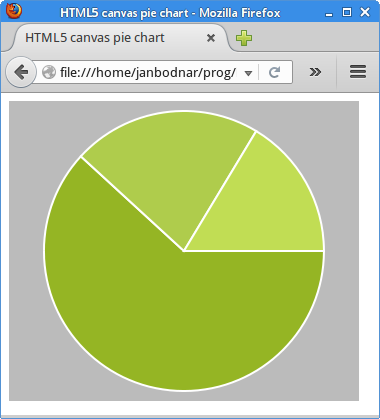
饼图是一种圆形图表,分为多个扇形以说明数字比例。
<!DOCTYPE html>
<html>
<head>
<title>HTML5 canvas pie chart</title>
<style>
    canvas {background: #bbb}
</style>
<script>
    function draw() {

        var canvas = document.getElementById('myCanvas');
        var ctx = canvas.getContext('2d');

        var beginAngle = 0;
        var endAngle = 0;
        var data = [170, 60, 45];
        var total = 0;
        var colours = ["#95B524", "#AFCC4C", "#C1DD54"];
        const SPACE = 10;

        for (var i = 0; i < data.length; i++) {
          total += data[i];
        }

        ctx.strokeStyle = 'white';
        ctx.lineWidth = 2;

        for (var j = 0; j < data.length; j++) {

            endAngle = beginAngle + (Math.PI * 2 * (data[j] / total));
            ctx.fillStyle = colours[j];
            ctx.beginPath();
            ctx.moveTo(canvas.width/2, canvas.height/2);
            ctx.arc(canvas.width/2, canvas.height/2, canvas.height/2 - SPACE,
                beginAngle, endAngle, false);
            ctx.closePath();
            ctx.fill();
            ctx.stroke();
            beginAngle = endAngle;
        }
    }
</script>
</head>
<body onload="draw();">
    <canvas id="myCanvas" width="350" height="300">
    </canvas>
</body>
</html>
示例绘制了一个饼图。它有三个扇区,以不同深浅的绿色填充。
<style>
    canvas {background: #bbb}
</style>
为了让图表的白色轮廓清晰可见,我们将画布的背景颜色更改为灰色。
var data = [170, 60, 45];
这是饼图说明的数据。
const SPACE = 10;
SPACE 常量是饼图到画布边界的距离。
endAngle = beginAngle + (Math.PI * 2 * (data[j] / total));
该公式计算当前绘制扇形的结束角度。
ctx.moveTo(canvas.width/2, canvas.height/2);
ctx.arc(canvas.width/2, canvas.height/2, canvas.height/2 - SPACE,
    beginAngle, endAngle, false);
ctx.closePath();
使用三个方法绘制当前扇形:moveTo、arc 和 closePath。
ctx.fill();
ctx.stroke();
我们同时绘制了形状的内部和轮廓。
beginAngle = endAngle;
对于下一个扇形,最后一个结束角度成为起始角度。
星形
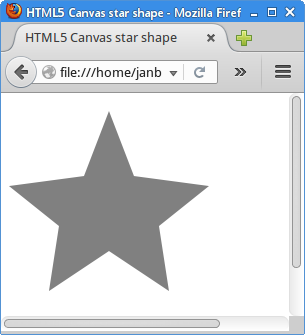
以下示例创建了一个星形。
<!DOCTYPE html>
<html>
<head>
<title>HTML5 canvas star shape</title>
<script>
    function draw() {

        var canvas = document.getElementById('myCanvas');
        var ctx = canvas.getContext('2d');

        ctx.fillStyle = 'gray';

        var points = [ [ 0, 85 ], [ 75, 75 ], [ 100, 10 ], [ 125, 75 ],
            [ 200, 85 ], [ 150, 125 ], [ 160, 190 ], [ 100, 150 ],
            [ 40, 190 ], [ 50, 125 ], [ 0, 85 ] ];

        var len = points.length;

        ctx.beginPath();
        ctx.moveTo(points[0][0], points[0][1]);

        for (var i = 0; i < len; i++) {
            ctx.lineTo(points[i][0], points[i][1]);
        }

        ctx.fill();

    }
</script>
</head>

<body onload="draw();">
    <canvas id="myCanvas" width="350" height="250">
    </canvas>
</body>
</html>
星形由一系列点创建。
var points = [ [ 0, 85 ], [ 75, 75 ], [ 100, 10 ], [ 125, 75 ],
    [ 200, 85 ], [ 150, 125 ], [ 160, 190 ], [ 100, 150 ],
    [ 40, 190 ], [ 50, 125 ], [ 0, 85 ] ];
这是星形的坐标。
ctx.moveTo(points[0][0], points[0][1]);
我们使用 moveTo 方法移动到形状的初始坐标。
for (var i = 0; i < len; i++) {
    ctx.lineTo(points[i][0], points[i][1]);
}
在这里,我们使用 lineTo 方法连接星形的所有坐标。
ctx.fill();
fill 方法使用定义的(灰色)颜色填充星形的内部。
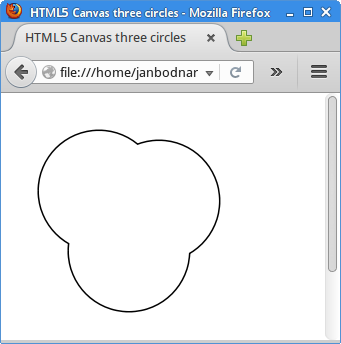
三个圆
可以使用复合(compositing)来创建新形状。复合是决定画布上形状混合方式的规则。
<!DOCTYPE html>
<html>
<head>
<title>HTML5 Canvas three circles</title>
<script>
    function draw() {

        var canvas = document.getElementById('myCanvas');
        var ctx = canvas.getContext('2d');

        ctx.lineWidth = 3;

        ctx.fillStyle = 'gray';
        ctx.beginPath();
        ctx.arc(90, 90, 60, 0, 2*Math.PI);
        ctx.stroke();

        ctx.beginPath();
        ctx.arc(120, 150, 60, 0, 2*Math.PI);
        ctx.stroke();

        ctx.beginPath();
        ctx.arc(150, 100, 60, 0, 2*Math.PI);
        ctx.stroke();

        ctx.globalCompositeOperation='destination-out';

        ctx.beginPath();
        ctx.arc(90, 90, 60, 0, 2*Math.PI);
        ctx.fill();

        ctx.beginPath();
        ctx.arc(120, 150, 60, 0, 2*Math.PI);
        ctx.fill();

        ctx.beginPath();
        ctx.arc(150, 100, 60, 0, 2*Math.PI);
        ctx.fill();
    }
</script>
</head>

<body onload="draw();">
    <canvas id="myCanvas" width="400" height="350">
    </canvas>
</body>
</html>
该示例通过组合三个圆的轮廓来创建一个形状。这三个圆会重叠。
ctx.beginPath();
ctx.arc(90, 90, 60, 0, 2*Math.PI);
ctx.stroke();
画布上绘制了一个圆。
ctx.globalCompositeOperation='destination-out';
复合操作设置为 destination-out。在此模式下,当源和目标不重叠时,目标将显示在所有地方。在其他所有地方,将显示透明度。
ctx.beginPath();
ctx.arc(90, 90, 60, 0, 2*Math.PI);
ctx.fill();
现在,相同的圆以灰色填充。新的绘图将在重叠的地方擦除现有绘图。结果是,只剩下轮廓。
在本部分 HTML5 画布教程中,我们涵盖了一些 HTML5 画布中的基本和更高级的形状。